> For the complete documentation index, see [llms.txt](https://support.attackforge.com/llms.txt). Markdown versions of documentation pages are available by appending `.md` to page URLs; this page is available as [Markdown](https://support.attackforge.com/app/getting-started/requesting-a-project.md).
# Requesting A Project
## Overview
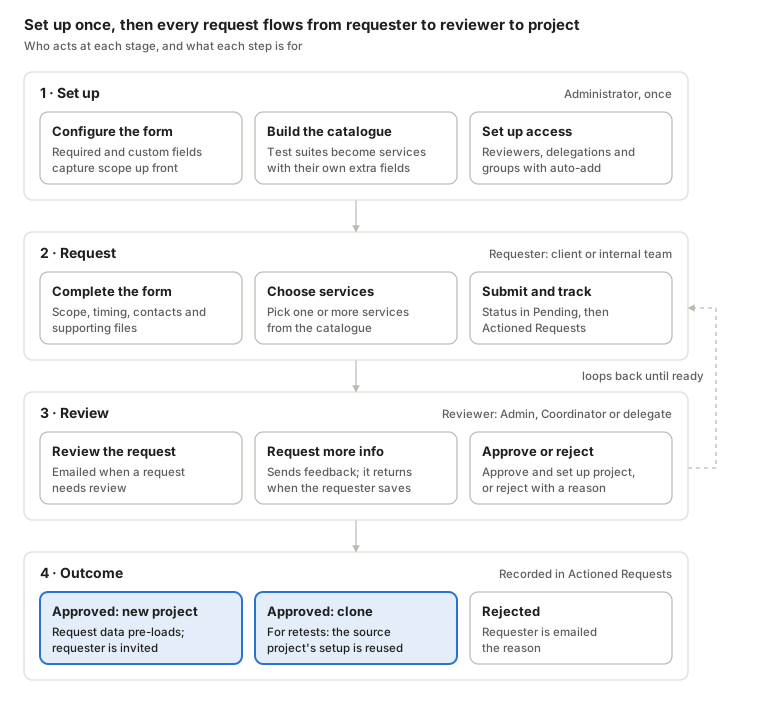
Project Requests give everyone who needs security testing one structured way to ask for it. Requesters describe what they need and choose services from a catalogue. Authorised reviewers then approve, reject or ask for more detail, and an approved request becomes a new project automatically.
## Why project requests exist
Without a request process, testing work tends to arrive through emails, spreadsheets, chat messages and tickets. Scope is incomplete, details go back and forth, and nobody has a reliable record of who asked for what or who approved it.
Project Requests solve this by giving you:
* **One front door for testing demand.** Every request arrives in the same place, in the same format.
* **Consistent scoping data.** The request form is configurable, so you capture the information your testers need from the start.
* **An approval gate.** Nothing becomes a project until an authorised person approves it.
* **No re-keying.** Approved request data pre-loads into the new project.
* **An audit trail.** Every request, decision and rejection reason is recorded and visible in the request history.
## Who benefits
| Who | How Project Requests help |
| ------------------------------------------------------------------------ | --------------------------------------------------------------------------------------------------------------------------------------------------------------------------------------------------------------------------------------------------------- |
| **Security consultancies and MSSPs** | Clients choose services from your catalogue and submit their own scope. This reduces pre-engagement admin and gives sales, account management and delivery the same view of each request. |
| **Internal security teams** | Application owners, development teams and business units request testing through a governed process. This supports demand management, prioritisation and compliance evidence, for example showing that an annual PCI DSS test was requested and approved. |
| **Requesters** (clients or internal stakeholders) | A guided form shows exactly what information is needed. Requesters can track their request's status and history without chasing anyone by email. |
| **Reviewers** (Administrators, Project Coordinators and delegated users) | Triage, query and approve every request from one place. Approved requests set up the project with the requester's details already filled in. |
{% hint style="info" %}
**A note on terms.** On this page, a *requester* is anyone who submits a project request, whether an external client or an internal stakeholder. A *reviewer* is anyone with permission to action requests.
{% endhint %}
## How the workflow works
A request moves through four statuses, and each status tells you whose turn it is to act. A request that needs more detail goes back to the requester and returns for review when they save their changes.
### Request statuses
| Status | What it means | Who acts next |
| ------------------------- | ------------------------------------------------------------------------------------- | ------------------------------------------ |
| **Pending Approval** | The request has been submitted, or updated after feedback, and is waiting for review. | Reviewers |
| **Requested Information** | A reviewer has asked the requester for more detail or changes. | Requester |
| **Approved** | The request was approved. A project has been created and the requester invited to it. | No one. The work continues in the project. |
| **Rejected** | The request was declined, with a reason. | No one |
### Who can do what
| Role | Submit | View | Edit | Approve, reject, request info |
| ------------------------------------------- | ------ | -------------------------------- | -------------------------- | ----------------------------- |
| Requester (the request's creator) | Yes | Own requests | Own requests | No |
| Administrator | Yes | All | All | Yes |
| Project Coordinator | Yes | All | All | Yes |
| Users with global delegations | Yes | As delegated | As delegated | As delegated |
| Users or groups added to a specific request | — | With View, Edit or Action access | With Edit or Action access | With Action access |
Access to individual requests is covered in Access controls for project requests.
## Before you start
An administrator usually sets up three things before requesters start submitting.
1. **The request form.** All form fields, including custom fields, field presentation and form logic, are configured in the [Administration](/app/modules/administration.md) module. Decide what scoping information your testers need and make those fields required.
2. **The Service Catalogue.** The services requesters choose from are your test suites. Set them up to match your consultancy's service offering or your internal team's testing playbooks. See [Choosing services from the Service Catalogue](#choosing-services-from-the-service-catalogue).
3. **Who can submit and review requests.** Check that requesters have permission to create project requests. Make sure the right people can review them, either as Administrators or Project Coordinators, through global delegations, or through groups.
{% hint style="info" %}
**Can't see Project Request in the menu?** Your account may not have permission to create project requests. Contact your AttackForge administrator.
{% endhint %}
## For requesters
#### Submit a request
1. Open the **Projects** module.
2. From the page menu, select `New` → `Project Request`.
3. Complete the scoping form. The fields you see depend on how your organisation has configured the form, and some appear only after you make certain selections.
4. Select one or more services from the Service Catalogue. Additional fields may appear depending on the service you choose.
{% hint style="info" %}
The Service Catalogue is an optional field within your form. You can enable or disable this field in the [Administration](/app/modules/administration.md) module.
{% endhint %}
5. Upload any supporting information, such as architecture diagrams, asset lists or previous reports.
6. Submit the request for review.
When you submit, the reviewers for your request are notified. You also receive an email confirming that your request is pending review.
### What to include in a good request
A complete request is reviewed faster and is less likely to come back to you for more information. Where your form allows, include:
* **What's in scope:** applications, URLs, IP ranges, environments and asset owners.
* **What's out of scope**, and any systems that must not be touched.
* **Why you need the test:** a release, a compliance requirement such as PCI DSS, an audit, or a customer commitment.
* **Timing:** preferred testing windows, blackout periods and any hard deadlines.
* **Contacts:** technical and escalation contacts for the testing period.
* **Supporting documents:** design documents, previous test reports, API specifications.
{% hint style="info" %}
**Don't upload production passwords or secrets** to a project request. Agree how credentials will be shared once the project is set up.
{% endhint %}
#### Track your requests
* **Pending Requests** in the Projects module shows requests that are still open. These have the status Pending Approval or Requested Information.
* **Actioned Requests** in the Projects module shows your request history, including approved and rejected requests and their outcomes.
## Update a request
You can change a pending request at any time before it is approved or rejected, for example to correct the scope or add a document.
## Respond to a request for more information
If a reviewer needs more detail, you receive an email describing what they need, and the request's status changes to **Requested Information**. You can also see the reviewer's message by opening the request.
1. Open the request from **Pending Requests**.
2. Read the reviewer's feedback.
3. Update the request to address it, then save.
When you save, the status returns to **Pending Approval** and reviewers are notified by email that the request is ready for review again.
## Choosing services from the Service Catalogue
The Service Catalogue lets requesters choose the testing they need, while you control what's on offer and what information each service collects.
{% hint style="info" %}
The Service Catalogue is an optional field within your form. You can enable or disable this field in the [Administration](/app/modules/administration.md) module.
{% endhint %}
Each service in the catalogue is a [Test Suite](/app/modules/test-suite-builder.md). Administrators can shape the catalogue around their own model:
* **Consultancies and MSSPs:** match the catalogue to the services you sell, such as web application, external network or PCI DSS penetration testing.
* **Internal security teams:** match the catalogue to your testing playbooks, such as a pre-release web application test, a cloud configuration review or an annual compliance test.
You can also configure additional fields that appear only when a particular service is selected. Each service then collects the details that type of assessment needs, without making the form longer for everyone else.
**Example (consultancy).** A client needs a PCI DSS penetration test to meet its annual requirement. The client selects *PCI DSS Penetration Test* from the catalogue. The form then asks for the cardholder data environment's in-scope assets, which the client lists.
**Example (internal team).** A product team is about to release a new customer portal. They select *Pre-Release Web Application Test*. The form asks for the release date, the staging URL and the application owner.
## For reviewers
When a request needs review, reviewers are notified by email. You then have four options: approve it, request more information, reject it, or perform a custom [Action](/app/actions.md). Administrators and Project Coordinators can action any request. Other users can action a request if they have Action access to it, either directly, through a group, or through a global delegation.
### Request more information
Use this when a request is worth doing but isn't ready, for example when the scope is unclear, assets are missing or the timing doesn't work. It keeps the request and its history together and avoids asking the requester to start again.
1. Open the request.
2. Select **Request more information** and describe what you need.
The requester receives an email with your message, and the request's status changes to **Requested Information**. When they save their changes, it returns to **Pending Approval** and you are notified again.
### Approve a request
1. Open the request and select **Approve and Setup Project**.
2. Choose how to set up the project:
* **Create a new project.** Use this for a first-time engagement. The request's data is pre-loaded into the project form for you.
* **Clone an existing project.** Use this for a new round of testing on an application, system or set of assets you have tested before, such as a retest or an annual assessment. The source project's details take precedence over the request's details.
3. Review and complete the project form. Two panes help you:
* The **Request** pane shows the original request details, so you can refer to them without leaving the form.
* The **Info** pane shows guidance for the field you're completing.
4. Save to approve the request.
{% hint style="info" %}
Approving a project request results in creating a project (consuming a project credit). This will impact your licence, if you are licenced for a limited number of projects.
{% endhint %}
Once approved, the project is created automatically and the requester is invited to it. The requester receives an email confirming the approval, with a link to the project dashboard. You can configure this email within the [Administration](/app/modules/administration.md) module.
### Reject a request
Reject a request when it won't go ahead, for example when it duplicates another request, is out of scope for your team or service, or has been withdrawn by the business. If more detail could make it viable, request more information instead.
1. Open the request and select **Reject**.
2. Enter a reason. The requester sees it, so make it clear and actionable.
The requester is notified by email that the request was rejected, including your reason.
## Access controls for project requests
Each project request has its own access controls, so the right people are notified and can work on it without everyone getting access to every request. This matters most when requests contain sensitive scope details, or when many clients or business units share one AttackForge instance.
You can grant access to a request to:
* **Users**
* **Groups**
This is in addition to the access that Administrators and Project Coordinators have automatically, and to any users who have been delegated privileges to view, edit and action project requests through global delegations.
### Access levels
| Access level | What the user can do |
| ------------ | --------------------------------------------------------------------------------------------- |
| **View** | See the request, but not change it. |
| **Edit** | See and change the request. |
| **Action** | Approve it (creating a linked project), reject it with a reason, or request more information. |
### Group access
When a group is linked to a project request, each group member's access to the request comes from their settings in that group. This lets you manage access for a whole team in one place, instead of request by request. You manage these settings in the group's settings.
### Automatically add requests to a group
Groups have an optional **auto-add** setting. When it's on, any project request created by a group member is automatically added to that group, and every member gets their group access level to it. Nobody has to remember to share each new request.
**Typical use:** a consultancy creates a group for each client, containing the client's users plus the account manager and project manager. Whenever anyone at the client submits a request, the account manager and project manager automatically get access to it.
**Example.** A group has auto-add turned on and contains four members. If any of them creates a project request, access is granted like this:
| Group member | Access to requests created by other members | Access to requests they created |
| --------------- | ------------------------------------------- | ------------------------------- |
| Project Manager | Action | Action |
| Account Manager | Edit | Edit |
| Joe Pentester | View | Edit |
| Client User | None | Edit |
The creator of a request always has at least **Edit** access to it, even if their group access is lower. In this example, Client User can edit their own requests but can't see requests made by other members.
## Notifications
AttackForge sends an email at every point where someone needs to act or know the outcome. Nobody needs to chase a request by hand.
| When | Who is notified | What the email contains |
| ----------------------------------------------------------- | ------------------------- | --------------------------------------------------------- |
| A request is submitted | Reviewers for the request | A new request is waiting for review |
| A request is submitted | Requester | Confirmation that the request is pending review |
| More information is requested | Requester | The reviewer's message describing what's needed |
| The requester saves updates after a request for information | Reviewers | The request has been updated and is ready for review |
| A request is approved | Requester | Approval confirmation and a link to the project dashboard |
| A request is rejected | Requester | The rejection and the reviewer's reason |
Email notifications can be managed and configured in the [Administration](/app/modules/administration.md) module.
## Tips and best practices
* **Make the form do the scoping.** Required fields and service-specific fields cut down on requests for more information more than anything else.
* **Request more information before rejecting.** It keeps the conversation and history in one request, and requesters don't have to start over.
* **Clone projects for retests and recurring tests.** You keep the previous project's setup and save time on configuration.
* **Write rejection reasons the requester can act on.** For example, say who to contact or what would make the request viable.
* **Use groups with auto-add for clients and business units.** Access is handled automatically, so new requests never sit unseen.
* **Keep the Service Catalogue current.** Retire services you no longer offer, so requesters can't pick them.
## FAQ and troubleshooting
**I can't see `Project Request` under `New` in the Projects module.** Your account probably doesn't have permission to create project requests. Contact your AttackForge administrator.
**Who reviews my request?** Administrators and Project Coordinators, plus anyone given Action access to it directly, through a group, or through a global delegation.
**Can I change my request after submitting it?** Yes, while it is still Pending Approval or Requested Information. Open it from Pending Requests.
**Can I withdraw a request?** No. You need to request the reviewer to reject it.
**Can I change a request after it's approved?** No. Once a request is approved, the work continues in the project it created. Ask the project's team to update the project.
**Where can I see requests that were approved or rejected?** In **Actioned Requests** in the Projects module.
**Can project requests be created automatically, for example from ServiceNow or Jira?** Yes, we recommend using [Flows](/app/modules/flows.md) to configure your desired workflows and behaviours.
## Related pages
A project request is the first step in the AttackForge lifecycle: request → project → testing → reporting → remediation → retesting. These pages cover the next steps and the setup behind them.
* [Creating and managing projects](/app/getting-started/creating-and-managing-projects.md)
* [Test Suites](/app/modules/test-suite-builder.md), which power the Service Catalogue
* Configuring the project request form ([Administration](/app/modules/administration.md))
* [Groups](/app/modules/groups.md)
* Global delegations
* [Project request API](https://docs.attackforge.dev/)
* [Actions](/app/actions.md), for triggering custom workflows
* [Flows](/app/modules/flows.md), for designing and configuring custom workflows
---
# Agent Instructions
This documentation is published with GitBook. GitBook is the documentation platform designed so that both humans and AI agents can read, navigate, and reason over technical content effectively. Learn more at gitbook.com.
## Querying This Documentation
If you need additional information that is not directly available in this page, you can query the documentation by asking a question.
Perform an HTTP GET request on the following URL with the `ask` and `goal` query parameters:
```
GET https://support.attackforge.com/app/getting-started/requesting-a-project.md?ask=&goal=
```
`ask` is the immediate question: it should be specific, self-contained, and written in natural language.
`goal` is what the user is ultimately trying to achieve, the reason they need the answer. Sharing it helps GitBook give you a better, more relevant answer. A goal is most helpful when it describes the outcome the user wants rather than restating the question. For example, with `ask=how do I create an API token`, a goal like `automate deployments from our CI pipeline` lets GitBook tailor the answer to that use case.
The response will contain a direct answer to the question and relevant excerpts and sources from the documentation.
Use this mechanism when the answer is not explicitly present in the current page, you need clarification or additional context, or you want to retrieve related documentation sections.