> For the complete documentation index, see [llms.txt](https://support.attackforge.com/llms.txt). Markdown versions of documentation pages are available by appending `.md` to page URLs; this page is available as [Markdown](https://support.attackforge.com/app/modules/reporting/template-styles.md).
# Template - Styles
## Overview
Template styles control how rich-text content looks in your reports. Rich text is content written in AttackForge's WYSIWYG editor, such as vulnerability descriptions and proof of concept. It's printed with `{@..._styled}` tags, where `...` is the tag name, such as `{@proof_of_concept_styled}`.
You can set default styles in your template. They apply to all rich-text content when the report is generated.
There are three ways to style it:
| Way | What it does | Where you set it |
| --------------------------- | ------------------------------------------------------------------------------ | ----------------------------------------------------------- |
| **Default AF styles** | Apply to all rich-text content in the report | Styles in your Word template |
| **Custom styles** | Apply your own Word styles to one tag's headings, lists, code, images and more | Tag options, such as `"normal_style":"VulnerabilityNormal"` |
| **Image and table options** | Control image captions and figures, and how rich-text tables look | Tag options, such as `"image_description":"caption"` |
Help, examples and tips are also on the [ReportGen GitHub support site](https://github.com/AttackForge/ReportGen).
## Why it matters
* **On-brand reports.** Rich-text content uses your fonts, colours and spacing, not the editor's.
* **Different styles for different sections.** A proof of concept can look different from a description, even in the same report.
* **Less fixing after generating.** Captions, figures and tables come out right the first time.
## Who uses it
| Who | To |
| --------------------------- | -------------------------------------------------------------- |
| **Report template authors** | Set up styles once, so every report matches |
| **Consultancies and MSSPs** | Match each client's or brand's style guide |
| **Testers** | Know how what they write in the editor will look in the report |
## Set default styles

| Style | Applies to |
| ------------------- | ------------------------------------------------------ |
| **AF Heading 1** | Style for WYSIWYG editor Heading 1 |
| **AF Heading 2** | Style for WYSIWYG editor Heading 2 |
| **AF Heading 3** | Style for WYSIWYG editor Heading 3 |
| **AF Code Snippet** | Style for WYSIWYG editor PRE |
| **AF Inline Code** | Style for WYSIWYG editor Code |
| **AF List** | Style for WYSIWYG editor lists (ordered and unordered) |
| **AF Images** | Style for images and their captions |
| **AF Normal** | Style for paragraph text |
| **AF BlockQuote** | Style for blockquotes |
## Use custom styles for rich-text fields
You can give a rich-text field its own styles, instead of the defaults. The style must already exist in your template.
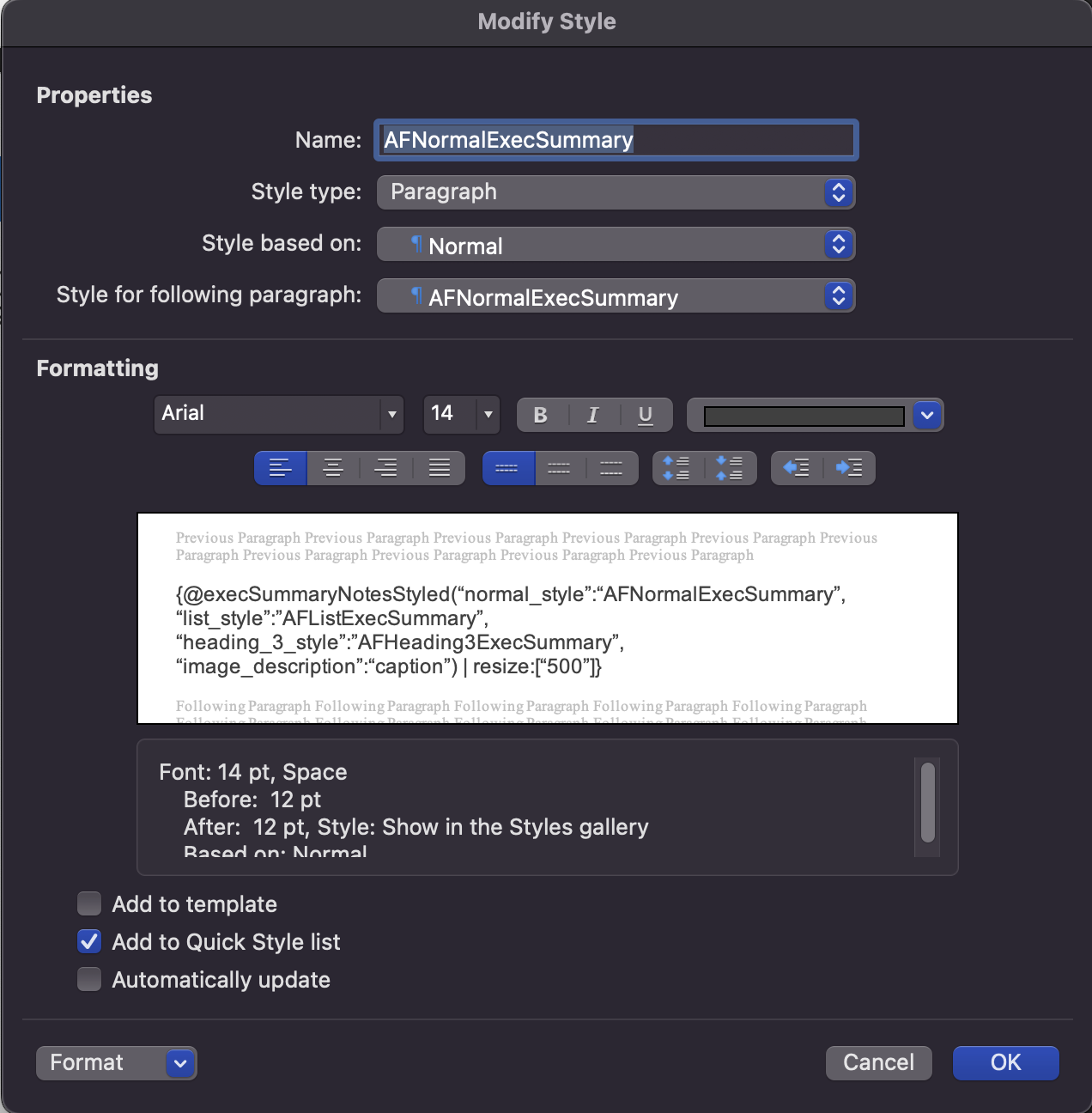
1. **Create the style in your Word template.** Don't put any whitespace in the style name.
2. **Reference the style in your tag options.**
```
{@proof_of_concept_styled("normal_style":"VulnerabilityNormal", "list_style":"VulnerabilityList")}
```
3. **Generate the report.** The style is applied automatically.
### Custom style options
| Option | Applies to | Word style type |
| --------------------------- | ----------------------------------- | --------------- |
| `normal_style` | Normal body text | Any |
| `list_style` | Lists | Any |
| `code_snippet_style` | Code snippets | Any |
| `inline_code_snippet_style` | Inline code snippets | **Character** |
| `heading_1_style` | Heading 1 | Any |
| `heading_2_style` | Heading 2 | Any |
| `heading_3_style` | Heading 3 | Any |
| `image_style` | Images and their captions | Any |
| `image_display_style` | Images only | **Character** |
| `image_description_style` | Image descriptions or captions only | **Character** |
| `hyperlink_style` | Hyperlinks | **Character** |
| `blockquote_style` | Blockquotes | Any |
## Microsoft Word character styles
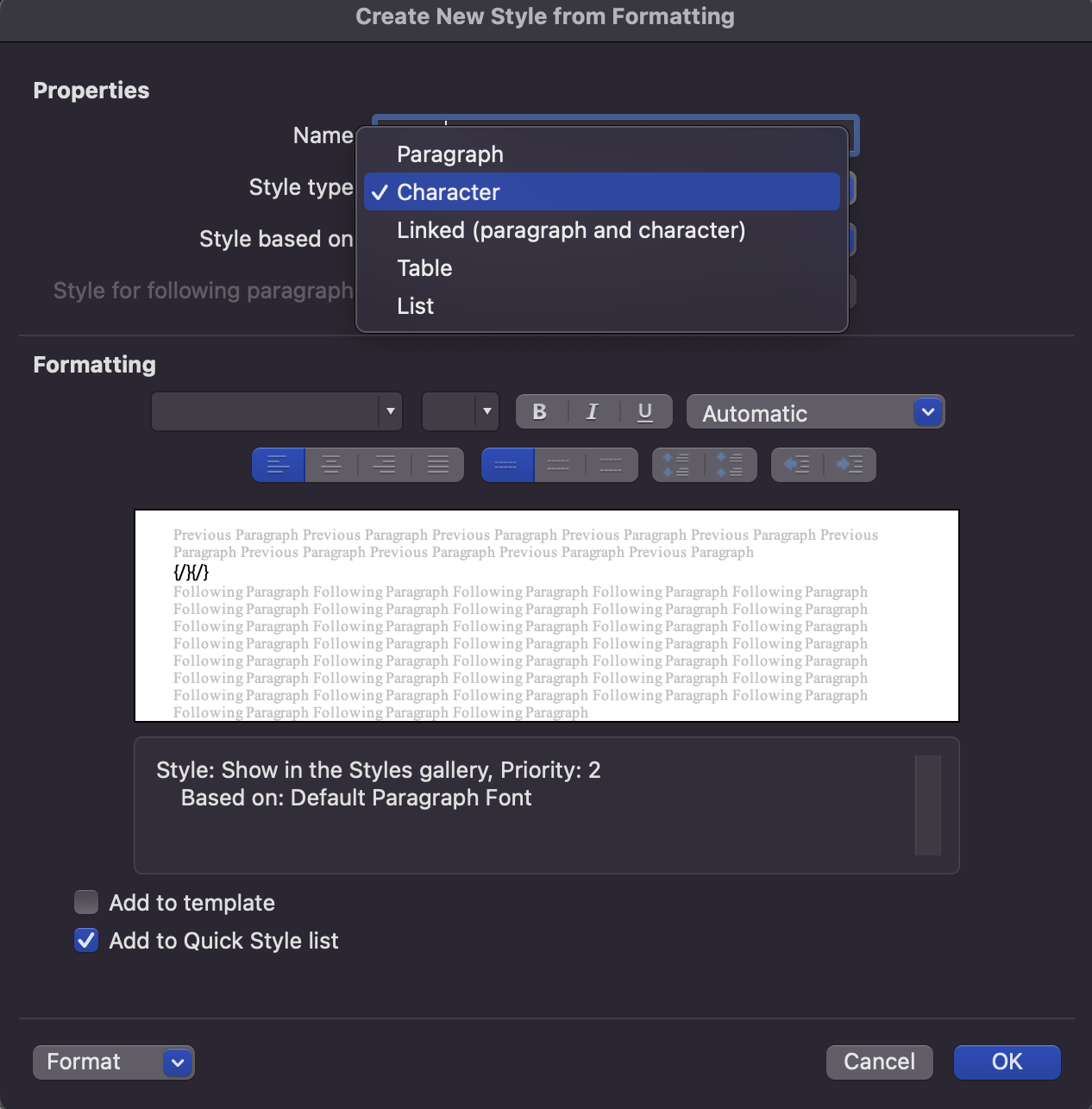
Character styles apply formatting to part of a paragraph, rather than the whole paragraph. The options marked **Character** above only work with character styles.
`inline_code_snippet_style`: the current page lists it as character-only in the options, but not in this section.
To create one:
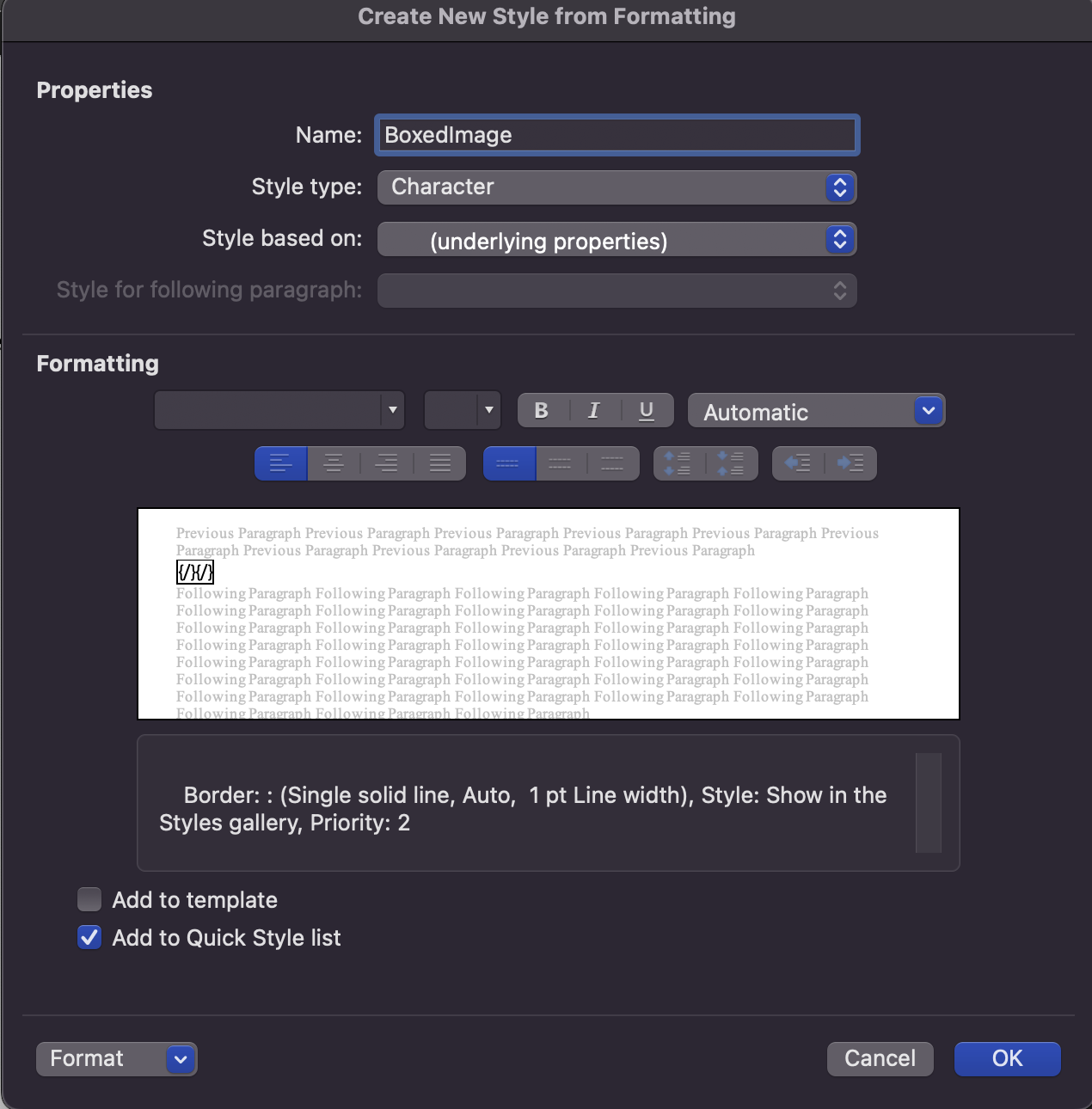
1. Create the custom style in your template. Don't put any whitespace in the style name.
2. Set **Style type** to **Character**.
{% hint style="info" %}
**Important:** Select "Character" for the Style type. Any other option will not work.
{% endhint %}
**Example** — show proof-of-concept images with a boxed character style, the caption below, at 300 pixels wide:
```
{#vulnerabilities}
{#affected_assets}
{@proof_of_concept_styled(“image_display_style”:”BoxedImage”,“image_description”:“caption”) | resize:[“300”]}
{/}{/}
```
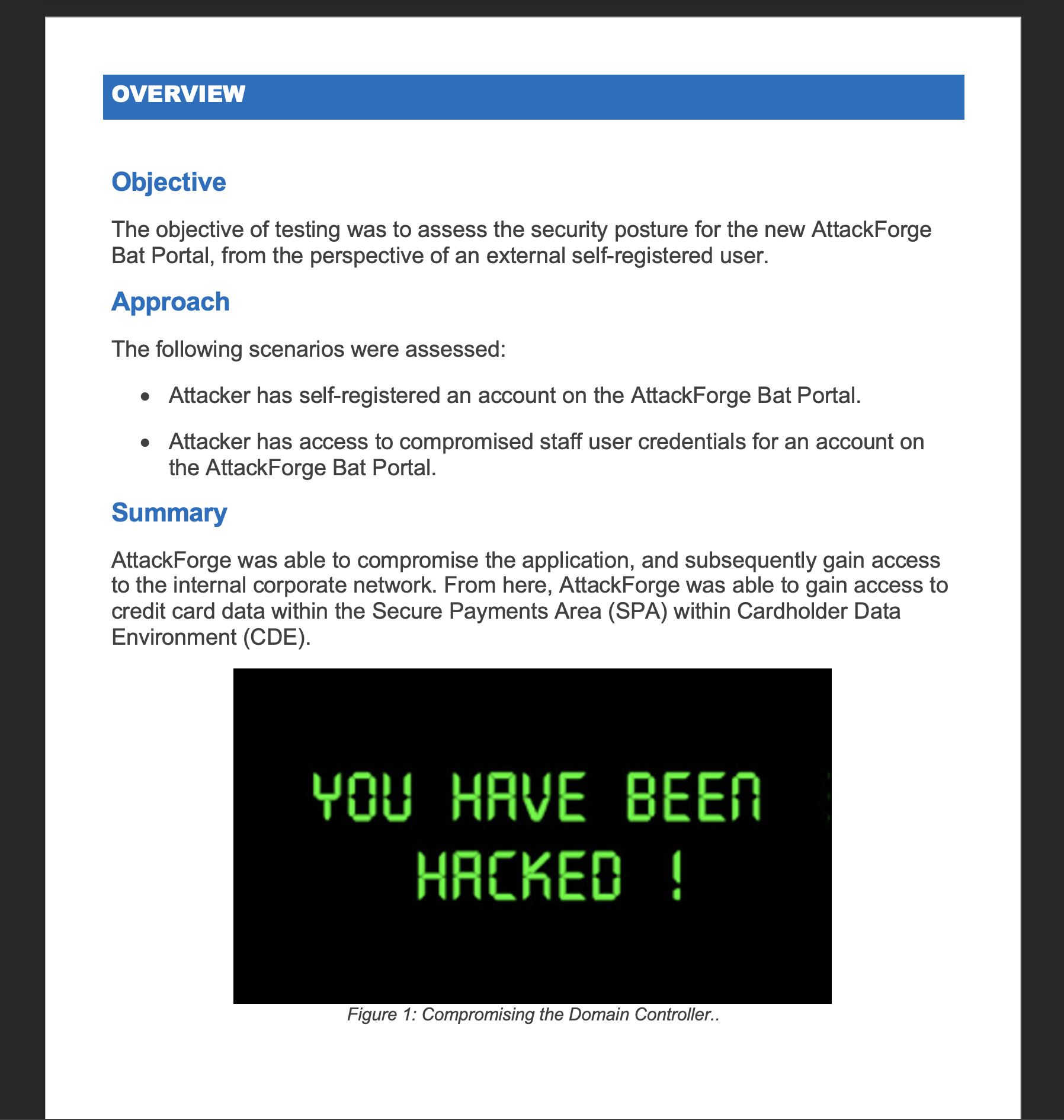
## Control image descriptions and figures
These options work on any `{@..._styled}` tag, where `...` is the tag name.
### Toggle the image description (filename or caption)
Choose whether the caption or the filename appears under each image.
| Option | What appears under the image |
| ---------------- | ------------------------------------------------ |
| `caption` | The caption if it exists, otherwise nothing |
| `prefer-caption` | The caption if it exists, otherwise the filename |
| `filename` | The filename |
| `none` | No caption or filename |
```
{@..._styled(“image_description”:“caption”)}
{@..._styled(“image_description”:“prefer-caption”)}
{@..._styled(“image_description”:“filename”)}
{@..._styled(“image_description”:“none”)}
```
### Toggle the image figure
Turn off the figure under an image.
| Option | What it does |
| ------ | ----------------------- |
| `none` | Doesn't show the figure |
```
{@..._styled(“image_figure”:“none”)}
```
## Style tables
Style the tables in rich-text content. These options work on any `{@..._styled}` tag.
| Option | Values |
| ---------------------------------------- | ------------------------------------------------------------- |
| `table_alignment` | left/center/right |
| `table_columns_width` | pixels e.g. 5000 |
| `table_rows_split_across_pages` | true/false |
| `table_borders_thickness` | pixels e.g. 30 |
| `table_borders_color` | hex color code e.g. 000000 |
| `table_cells_margin_top` | pixels e.g. 1 |
| `table_cells_margin_bottom` | pixels e.g. 1 |
| `table_cells_margin_left` | pixels e.g. 1 |
| `table_cells_margin_right` | pixels e.g. 1 |
| `table_cells_borders_thickness` | pixels e.g. 10 |
| `table_cells_borders_color` | hex color code e.g. 000000 |
| `table_rows_header_style` | maps to a Word style (don't put whitespace in the style name) |
| `table_rows_header_background_color` | hex color code e.g. 000000 |
| `table_rows_header_height` | pixels e.g. 600 |
| `table_rows_header_vertical_alignment` | top/center/bottom |
| `table_rows_header_horizontal_alignment` | left/center/right |
| `table_rows_body_style` | maps to a Word style (don't put whitespace in the style name) |
| `table_rows_body_vertical_alignment` | top/center/bottom |
| `table_rows_body_horizontal_alignment` | left/center/right |
| `table_rows_body_background_color` | hex color code e.g. 000000 |
| `table_rows_body_height` | pixels e.g. 1000 |
**Example** — every table option at once:
```
{@..._styled(“table_alignment”:”center”,”table_columns_width”:”5000”,”table_rows_split_across_pages”:”true”,”table_borders_thickness”:”30”,”table_borders_color”:”ff5733”,”table_cells_margin_top”:”1”,”table_cells_margin_bottom”:”1”,”table_cells_margin_left”:”1”,”table_cells_margin_right”:”1”,”table_cells_borders_thickness”:”10”,”table_cells_borders_color”:”6c3483”,”table_rows_header_style”:”CustomTableHeader”,”table_rows_header_background_color”:”00B050”,”table_rows_header_height”:”600”,”table_rows_header_vertical_alignment”:”center”,”table_rows_header_horizontal_alignment”:”center”,”table_rows_body_style”:”CustomTableBody”,”table_rows_body_vertical_alignment”:”center”,”table_rows_body_horizontal_alignment”:”center”,”table_rows_body_background_color”:”c7fcc5”,”table_rows_body_height”:”1000”)}
```
The option values (center, color) use US spelling because they're product syntax.
## Tips
* **Start with the AF styles.** Set them up once in your template, then add custom styles only where a section needs to look different.
* **No spaces in style names.** Use names like `VulnerabilityNormal`, not `Vulnerability Normal`.
* **Check the style type.** `inline_code_snippet_style`, `image_display_style`, `image_description_style` and `hyperlink_style` need a Word character style.
* **Use `prefer-caption`** so every image has a description, even when the tester didn't add a caption.
* **Combine options with filters.** For example, add `| resize:["300"]` to set the image width as well.
* **Use straight quotes (") in Word.** Turn off Word's smart quotes when writing tags.
## FAQ
**My custom style isn't being applied. Why?** Check that the style exists in the template, that its name has no spaces and matches the tag option exactly, and that character-only options use a character style.
**What's the difference between `image_style` and `image_display_style`?** `image_style` applies to images and their captions. `image_display_style` applies to the images only, and must be a character style.
**How do I hide image filenames?** Use `"image_description":"caption"` to show only captions, or `"none"` to show nothing.
**Can I use several options on one tag?** Yes. Separate them with commas, as in the table styling example.
**Do these options work on every rich-text field?** They work on any `{@..._styled}` tag.
**What units do table sizes use?** Pixels.
## Related pages
* [Reporting overview](https://support.attackforge.com/app/modules/reporting/overview)
* [Template options](https://support.attackforge.com/app/modules/reporting/template-options)
* [Template functions](https://support.attackforge.com/app/modules/reporting/template-functions)
* [Template filters](https://support.attackforge.com/app/modules/reporting/template-filters)
* [ReportGen on GitHub](https://github.com/AttackForge/ReportGen)
---
# Agent Instructions
This documentation is published with GitBook. GitBook is the documentation platform designed so that both humans and AI agents can read, navigate, and reason over technical content effectively. Learn more at gitbook.com.
## Querying This Documentation
If you need additional information that is not directly available in this page, you can query the documentation by asking a question.
Perform an HTTP GET request on the following URL with the `ask` and `goal` query parameters:
```
GET https://support.attackforge.com/app/modules/reporting/template-styles.md?ask=&goal=
```
`ask` is the immediate question: it should be specific, self-contained, and written in natural language.
`goal` is what the user is ultimately trying to achieve, the reason they need the answer. Sharing it helps GitBook give you a better, more relevant answer. A goal is most helpful when it describes the outcome the user wants rather than restating the question. For example, with `ask=how do I create an API token`, a goal like `automate deployments from our CI pipeline` lets GitBook tailor the answer to that use case.
The response will contain a direct answer to the question and relevant excerpts and sources from the documentation.
Use this mechanism when the answer is not explicitly present in the current page, you need clarification or additional context, or you want to retrieve related documentation sections.